
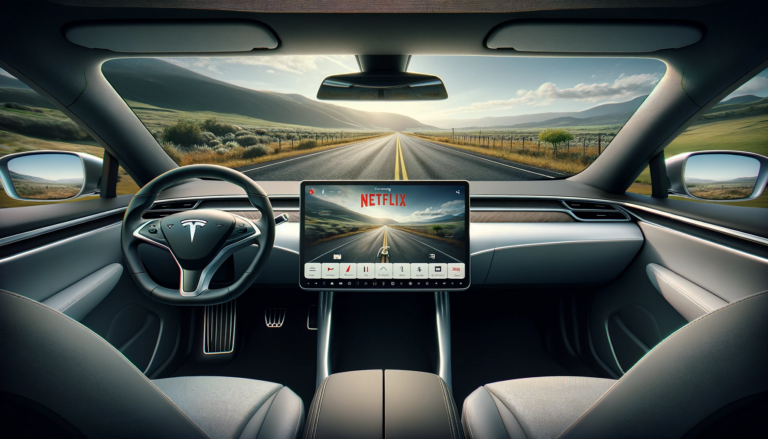
With advanced entertainment systems and internet connectivity, Tesla vehicles have sparked significant interest around streaming videos and content directly onto the vehicle’s touchscreen display. From watching YouTube and playing games to streaming Netflix shows during long road trips, Tesla owners are curious about the possibilities.
Can you watch videos on the Tesla screen while driving?
It is illegal & unsafe to watch Netflix & Youtube videos while driving (if you are the driver) – but it is possible to do as the passenger of the vehicle. Tesla’s infotainment system allows full access to streaming platforms while parked. But options narrow when the vehicle is shifted into drive.
Tesla has intentionally developed restrictions to block certain types of video streaming that can distract drivers from focusing on the road. Additional apps are needed to do so. This article will provide an overview of available options for video streaming in a Tesla, both while parked and in motion, along with a discussion around responsible use & technical workarounds.
Our goal is to educate Tesla owners on how to enjoy streaming videos without distracting the driver. Both drivers and passengers can participate in responsible enjoyment of entertainment features with some helpful pointers we’ll be sure to cover.
How to Watch YouTube Videos on the Tesla Screen

- Make sure your Tesla vehicle is safely shifted into Park mode. Actively streaming videos is restricted when the car detects you are driving.
- On your Tesla’s main touchscreen, locate and select the “Theater” app which resembles a classic popcorn icon. This will launch Theater mode.
- Within the Theater app menu, find and tap on the YouTube icon. This will open the YouTube app.
- Using YouTube’s familiar interface, you can now search or browse for videos you would like to play directly on your vehicle’s touchscreen.
- Tap on any video thumbnail and it will begin playing audio and video just like watching YouTube on any other internet-connected device. You can pause, adjust volume, exit back to the menu, etc.
While parked, the YouTube app offers full capability just as you’d expect for enjoying videos, music, and more on the expansive Tesla display.
How to Connect a Netflix Account to your Tesla
In order to watch Netflix in your Tesla, you need to connect your account first. To link your existing Netflix subscription to your vehicle:
- Make sure your Tesla vehicle is in Park mode with the parking brake engaged for safety.
- On the vehicle’s touchscreen interface, select the “Entertainment” app from the main menu or app dock.
- Within the Entertainment options, locate and tap on the red Netflix logo/icon to open the Netflix app.
- On the initial Netflix access screen, select the “Sign In” button.
- Using the on-screen keyboard, enter your existing Netflix account credentials – the email and password associated with your Netflix membership.
- Check the box to save your email if you wish to have it pre-populated the next time someone accesses Netflix.
- Tap the “Sign In” button once your email and password are accurately entered.
- Wait for Netflix to verify your credentials and grant access to your Netflix profile and account settings.
Once linked your Netflix account will remain connected to your Tesla for easy access in the future. You can now view your customized recommendations, continue watching shows you’ve started on other devices, and access all of your account settings just as you would on any other Netflix-enabled platform.
How to Stream Netflix via Tesla Theater

- Confirm your Tesla is safely in Park before attempting to access Netflix for video streaming.
- On your Tesla’s main menu, tap on the “Theater” app icon shaped like classic movie theater popcorn and drinks.
- Within the Theater mode menu, scroll down using the touchscreen to locate the Netflix icon. Tap to launch the Netflix app.
- Upon opening Netflix, you will be taken directly to your account and previously set profiles. Select the profile you wish to browse and watch content from.
- Leverage Netflix’s familiar browsing menus and categories using taps and scrolls on the touchscreen to discover shows and movies that catch your interest.
- Select any title to view details like descriptions, imagery, and previews. Tap the play icon when ready to begin streaming a title.
- Use on-screen controls or the Tesla steering wheel buttons to pause, adjust audio, exit Netflix, and control your streaming experience.
While convenient and entertaining for passengers, do keep in mind that Netflix video streaming is limited to a maximum of 720p resolution on Tesla vehicles. Additionally, streaming high definition video can consume substantial mobile data – so be mindful of your connectivity plan’s limitations if not connected to WiFi.
Options for Watching Netflix & YouTube While Driving
Tesla’s safety features disable video streaming on the front touchscreen to prevent distracted driving. However, passengers can utilize secondary devices to enjoy entertainment during trips:
- TeslaMirror – This smartphone app streams content from your mobile device to the Tesla browser, allowing passengers another way to leverage the in-car screen real estate. Video playback continues for passengers even when the vehicle is no longer in park.
- Tablets & Mobile Devices – Passengers should consider bringing tablets, phones, or portable DVD players. These devices allow enjoyment of stored or streamed content without placing video in the driver’s view.
The ability to access videos, movies, music, and more through Theater mode and other input methods expands the options for both drivers and passengers in a Tesla. But ultimately video entertainment should never distract from or override the responsibility to drive safely.
Responsible and Safe Use of In-car Entertainment
While tapping into the vast world of entertainment options available through Tesla’s software and connectivity features, it’s imperative we discuss responsible and safe usage while operating this heavy machinery on public roads. The main purpose of Tesla’s center screen is for safety features like the blind spot camera, not watching videos while driving. Tesla explicitly prohibits the streaming of video content and visually distracting apps on the front center display while the vehicle is shifted into Drive or in motion.
Safety restrictions temporarily disable certain features until the vehicle is securely in park. And when your battery is low, even more features such as Sentry Mode are turned off as well. It is the driver’s responsibility to comply with these limitations and prioritize focus on safe vehicle operation over the enjoyment of passengers.
Never attempt to override safety settings or physically adjust the screen to make video content visible from the driver seat while in motion. Additionally, most local governments prohibit the viewing of screens unrelated to driving like phones and video devices in the driver’s sightlines. Review your regional legal codes and precedent to ensure your recreational use of Tesla’s systems will comply with laws should any incidents occur.
Key Takeaways
Tesla offers innovative entertainment integrations that, when used conscientiously, can boost the passenger experience without compromising safety. Entertainment like Netflix, YouTube, games, and the broader internet are luxuries made accessible within your car’s space.
But the fundamental priority tesla outlines for all owners is maintaining your responsibility as the pilot of a vehicle sharing public infrastructure. Keep your eyes on the road, hands on the wheel, and divert non-driving distractions to times when safely parked.
About the Author
